> ## Documentation Index
> Fetch the complete documentation index at: https://redo-44af351d-docs-returns-email-query-param.mintlify.site/llms.txt
> Use this file to discover all available pages before exploring further.
# AIMS360
> Connect AIMS360 to Redo for automated return processing
## What is AIMS360?
AIMS360 is a comprehensive fashion ERP software designed specifically for apparel business management. It provides integrated solutions for the fashion industry including product information management (PIM), production lifecycle management (PLM), order management (OMS), warehouse management (WMS), shipping, and accounting. AIMS360 supports omni-channel operations including Shopify integration, EDI, dropship, and B2B wholesale.
## What Does the Integration Do?
The AIMS360 integration automates your return workflow by connecting Redo directly to your AIMS360 ERP system:
**Automatic RMA Creation** When a customer initiates a return through Redo, an RMA is automatically created in AIMS360 with all the necessary details—customer information, SKUs, quantities, return reasons, and processing instructions.
**Automatic Return Processing** When items are physically received in your warehouse, AIMS360 notifies Redo, which automatically triggers the appropriate return processing:
* **Refunds**: Issued back to the customer's original payment method
* **Exchanges**: New orders created and sent to your fulfillment queue
* **Store credit**: Applied to the customer's account
This eliminates manual data entry and ensures your warehouse team and customer service team are always in sync.
## How to Set It Up
Follow these steps to connect AIMS360 to your Redo account:
Contact your AIMS360 representative to obtain your API credentials. You'll need these to establish the connection between Redo and AIMS360.
In your Redo dashboard, go to **Settings** → **Returns & Claims** → **Integrations**
Locate the AIMS360 integration tile in your integrations list:
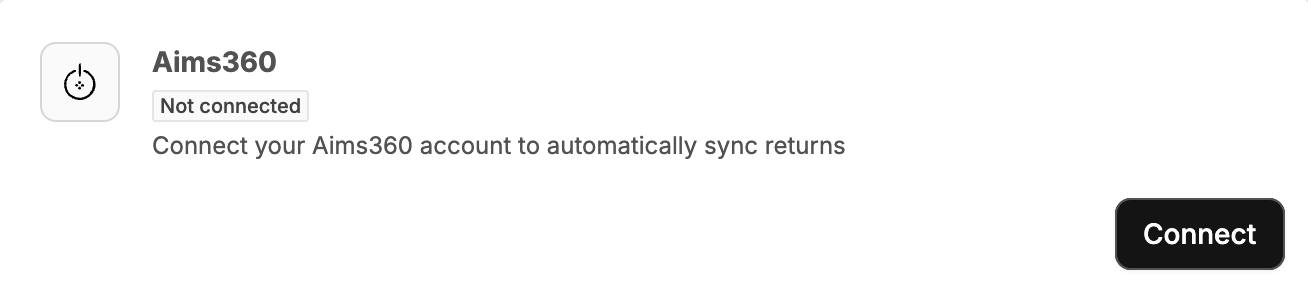 Click **Connect** and enter your AIMS360 API credentials in the connection form:
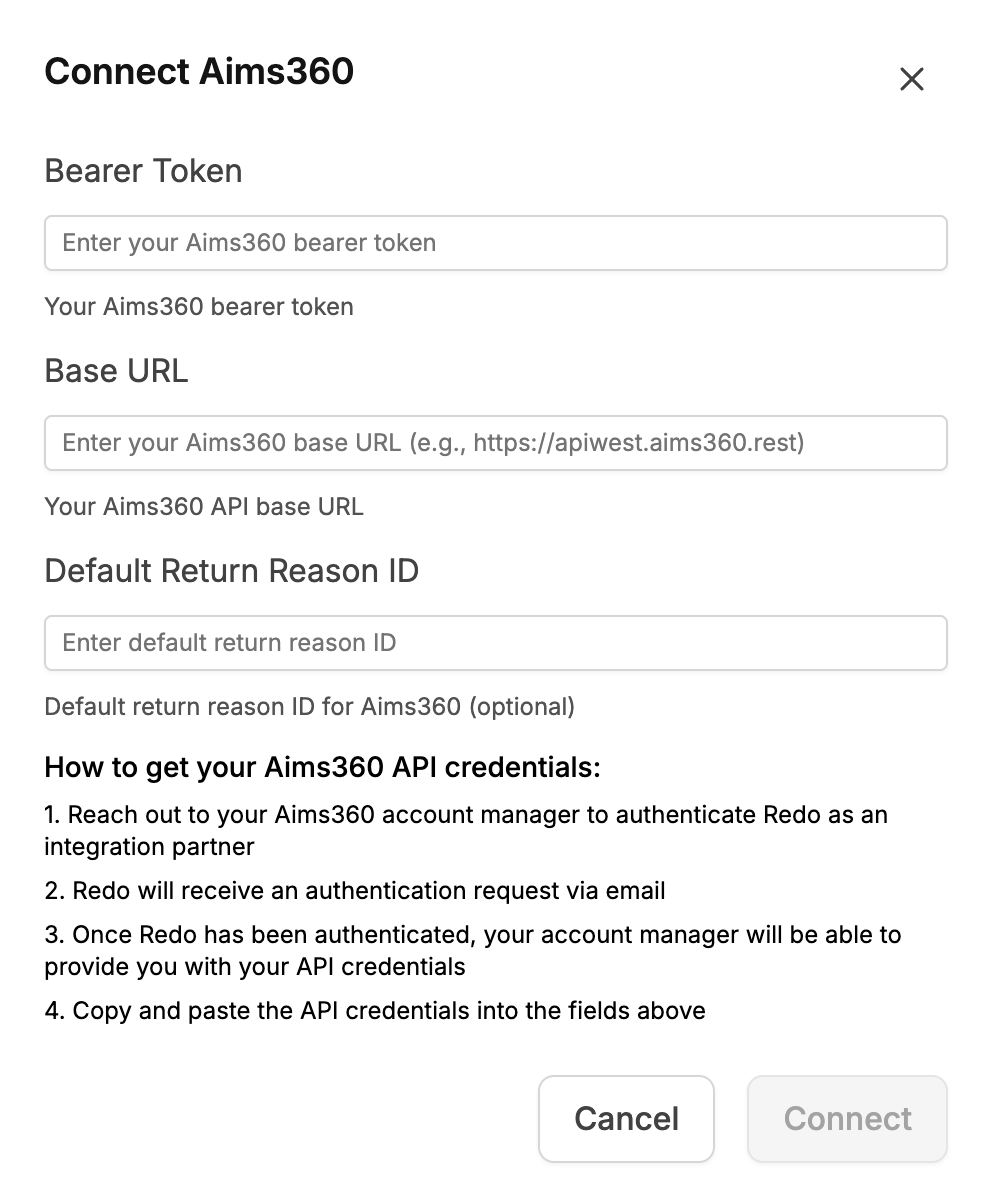 You'll be prompted to enter a default return reason code. This code determines how returns are categorized in AIMS360. Consult with your AIMS360 administrator for the appropriate code to use.
Enter your default warehouse ID to link your Redo returns to the correct AIMS360 warehouse location:
You'll be prompted to enter a default return reason code. This code determines how returns are categorized in AIMS360. Consult with your AIMS360 administrator for the appropriate code to use.
Enter your default warehouse ID to link your Redo returns to the correct AIMS360 warehouse location:
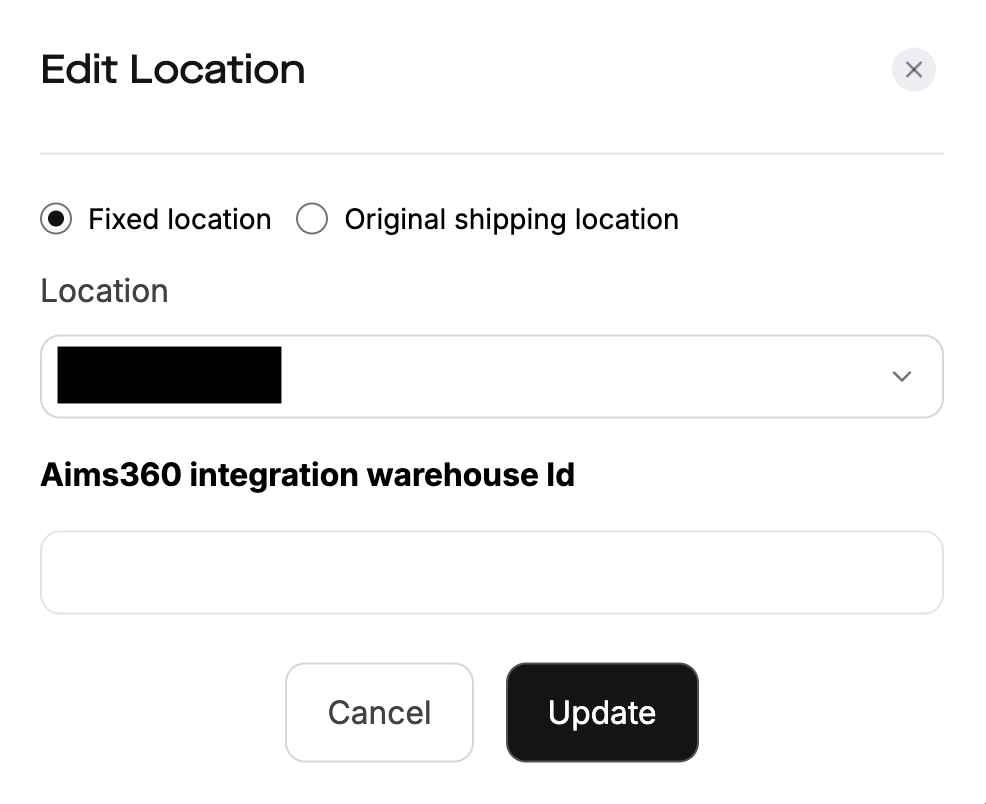 This ensures returns are routed to the correct warehouse in your AIMS360 system.
Once all credentials and configuration values are entered, Redo will test the connection to ensure everything is configured correctly. You'll see a confirmation once the integration is successfully connected.
If you need help obtaining your AIMS360 API credentials, return reason codes, warehouse ID, or encounter any issues during setup, contact our support team at [support@getredo.com](mailto:support@getredo.com).
## How Long Does It Take?
Once we have your AIMS360 API credentials, the integration typically takes **approximately 30 minutes** to configure and test. This includes:
* Entering and validating your credentials
* Configuring return reason codes
* Setting up your warehouse ID
## Need Help?
If you have questions about the AIMS360 integration or need assistance with setup, our support team is here to help.
**Email:** [support@getredo.com](mailto:support@getredo.com)
You can also reach out through the chat widget in your Redo dashboard.
This ensures returns are routed to the correct warehouse in your AIMS360 system.
Once all credentials and configuration values are entered, Redo will test the connection to ensure everything is configured correctly. You'll see a confirmation once the integration is successfully connected.
If you need help obtaining your AIMS360 API credentials, return reason codes, warehouse ID, or encounter any issues during setup, contact our support team at [support@getredo.com](mailto:support@getredo.com).
## How Long Does It Take?
Once we have your AIMS360 API credentials, the integration typically takes **approximately 30 minutes** to configure and test. This includes:
* Entering and validating your credentials
* Configuring return reason codes
* Setting up your warehouse ID
## Need Help?
If you have questions about the AIMS360 integration or need assistance with setup, our support team is here to help.
**Email:** [support@getredo.com](mailto:support@getredo.com)
You can also reach out through the chat widget in your Redo dashboard.